(bruges også hvis tastaturet ikke virker før en genstart)
Booting up your PC faster is possible with Windows fast startup. By turning on this feature, your machine will hibernate all the files, and it will resume where it left off at the next startup. However, with fast startup enabled, the machine does not completely shut down. In addition, the BIOS/UEFI settings may not be accessible because your PC isn't completely turned off. If your machine has high memory usage or lag, try closing fast startup and restarting the computer.
To enable or disable Windows fast startup:
Method 1
1. Search for and open Control Panel using the search feature.
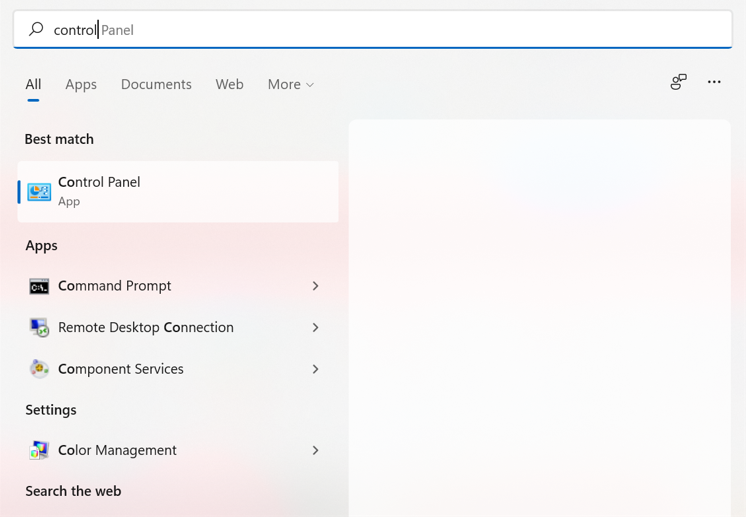
2. Choose View by: Category, then select Hardware and Sound.
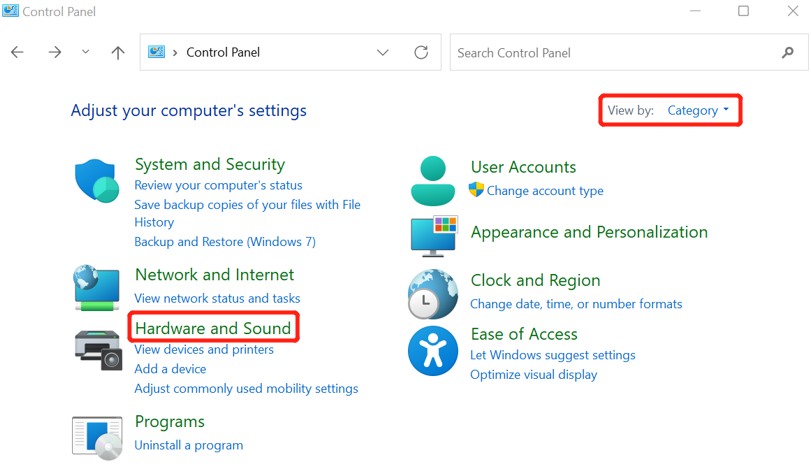
3. Select Power Options.
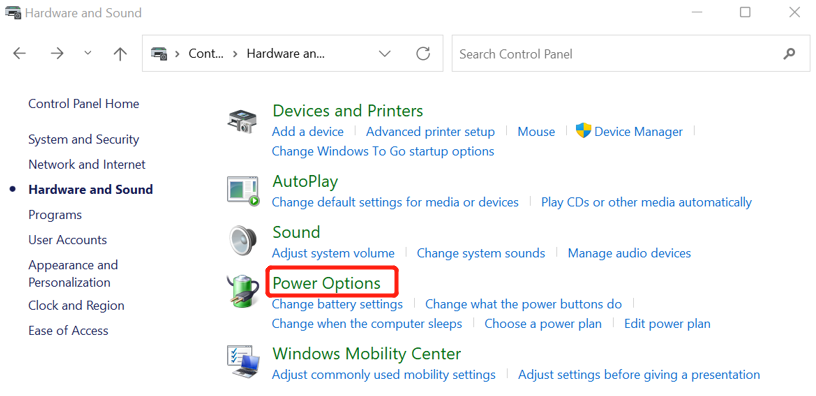
4. Select Choose what the power buttons do.
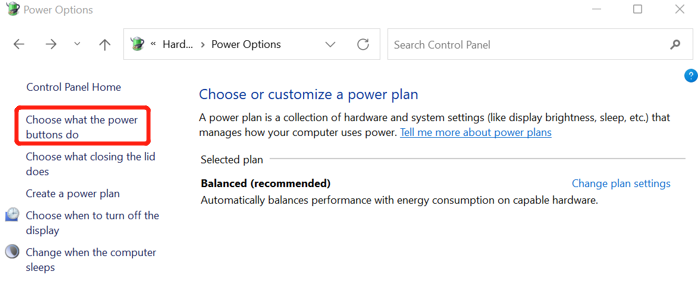
5. Click Change settings that are currently unavailable.
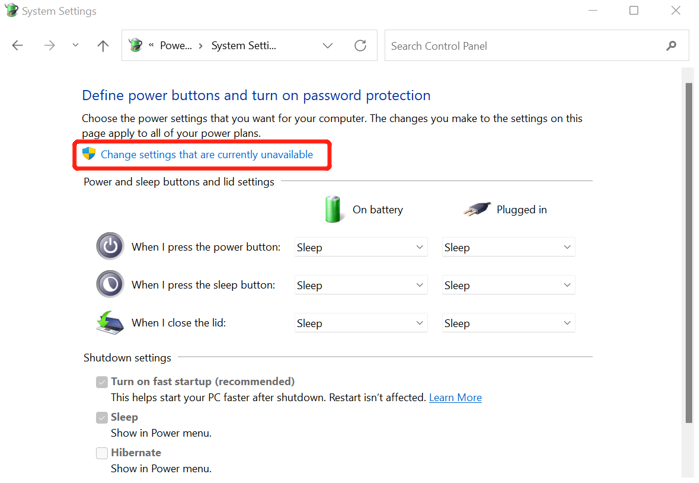
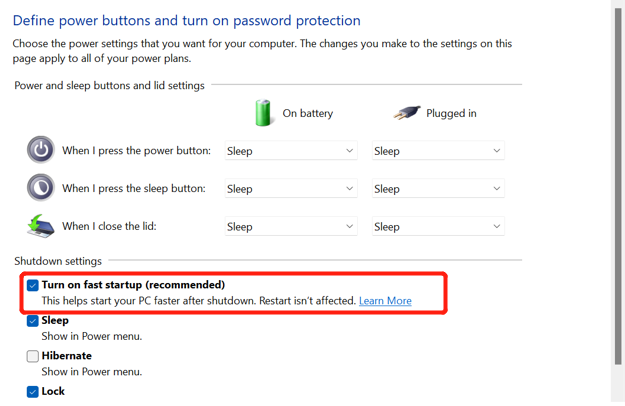
6. Check or uncheck turn on fast startup to enable or disable the feature.
Method 2
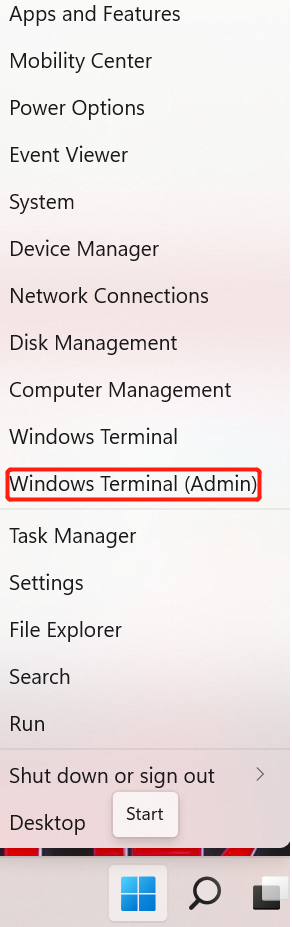
1. Right-click the Start menu and select Windows Terminal (Admin).
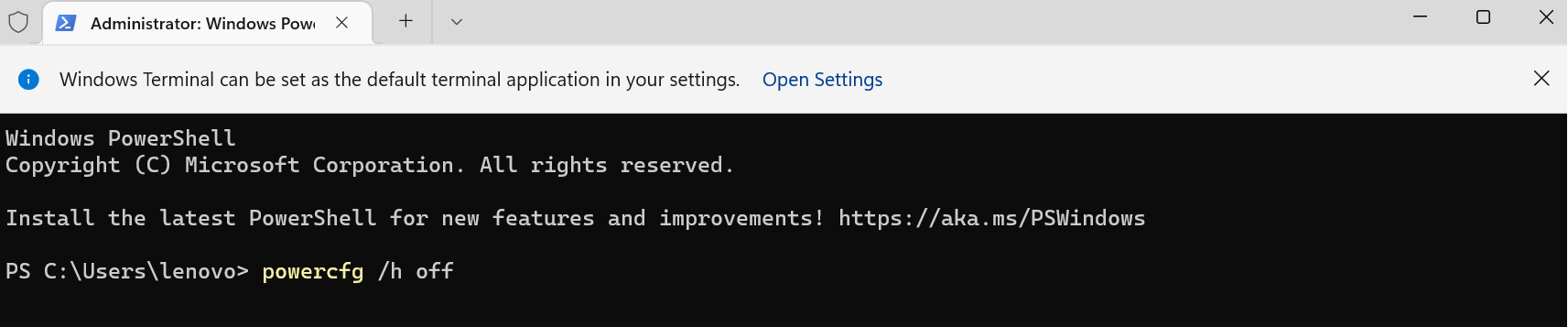
2. In Windows Terminal, enter powercfg /h on or powercfg /h off to turn fast startup on or off, then press Enter.
Var denne artikel nyttig?
Fantastisk!
Tak for din feedback
Beklager, at vi ikke var nyttige
Tak for din feedback
Feedback sendt
Vi sætter pris på din indsats og vil forsøge at rette artiklen